This step-by-step guideline will walk you through how to add your company email account to the Gmail app on your mobile device. Whether you’re setting it up for the first time or reconfiguring an existing account, the following instructions will help you access your work email, send and receive messages, organize folders like Inbox, Sent, Drafts, Trash, and Spam, and stay connected through your phone — all using the Gmail app.
Step 1: Open the Gmail App
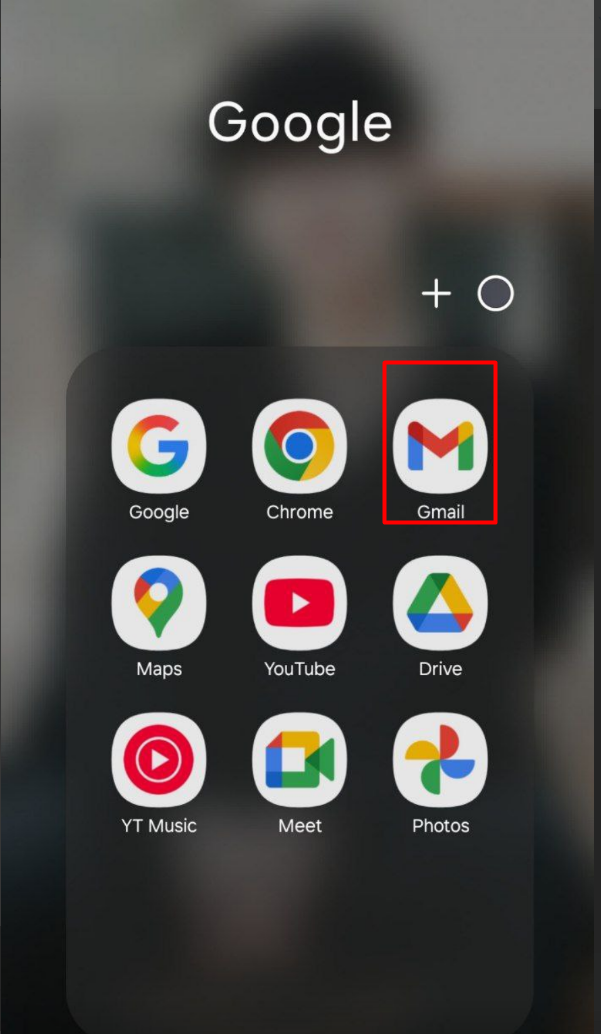
Tap the Gmail app on your Android or iOS device.
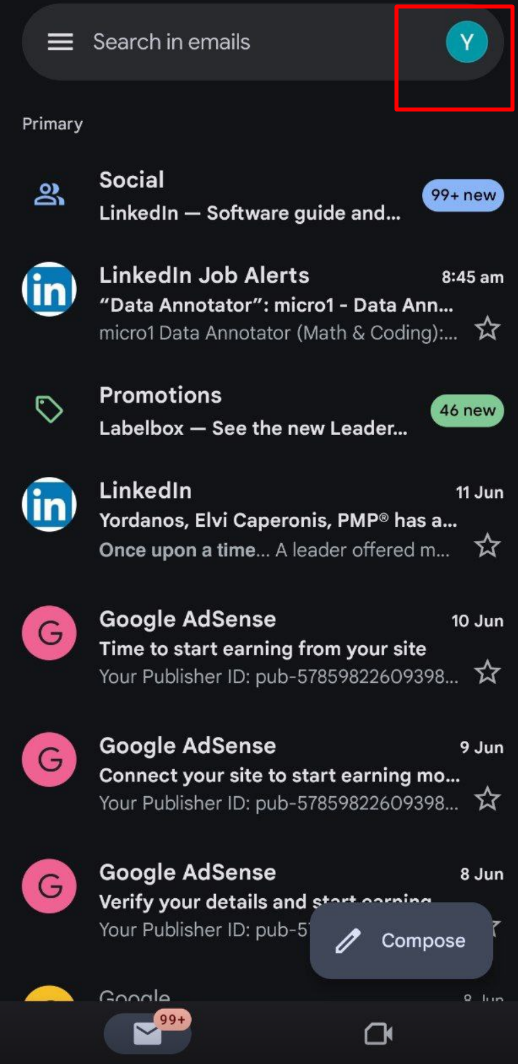
If you’re already logged in with another email, tap your profile picture at the top-right corner.
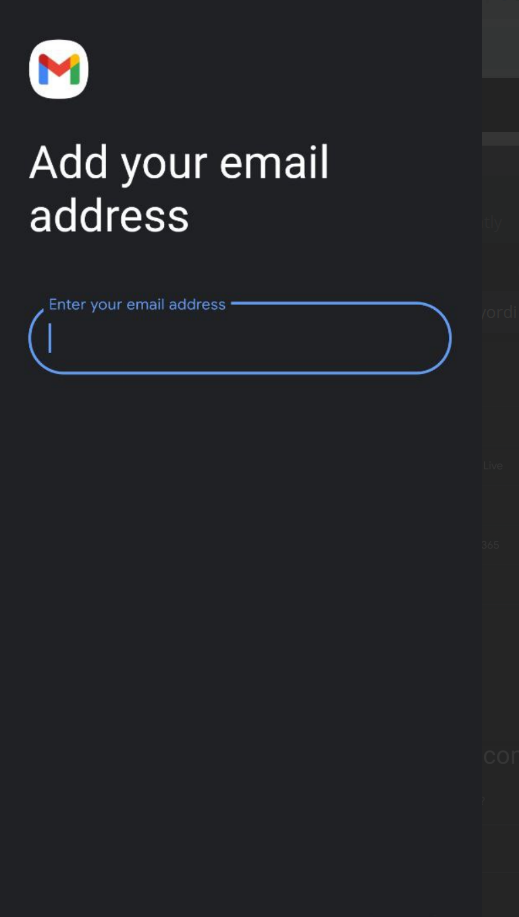
Image 01. Open the Gmail App
Step 2: Add Another Account
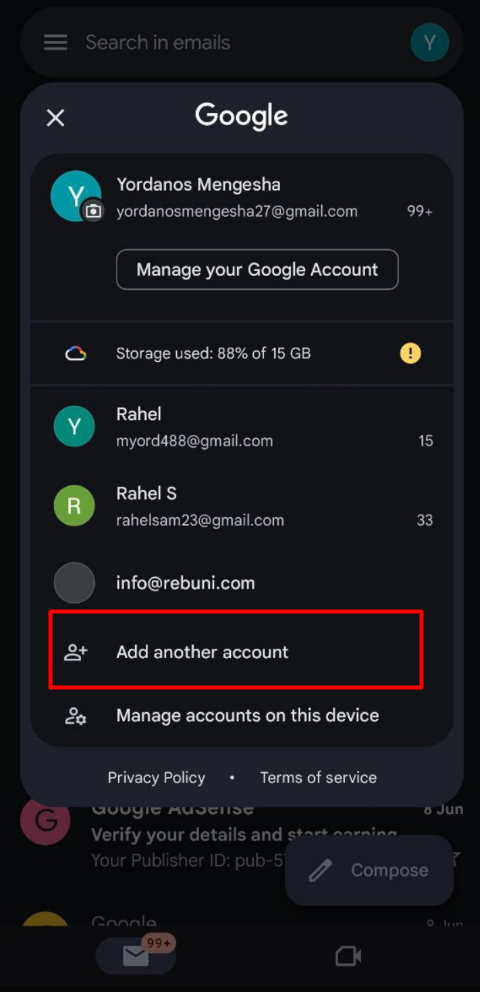
Tap “Add another account.”
Image 02. Add Another Account
Step 3: Choose Email Type
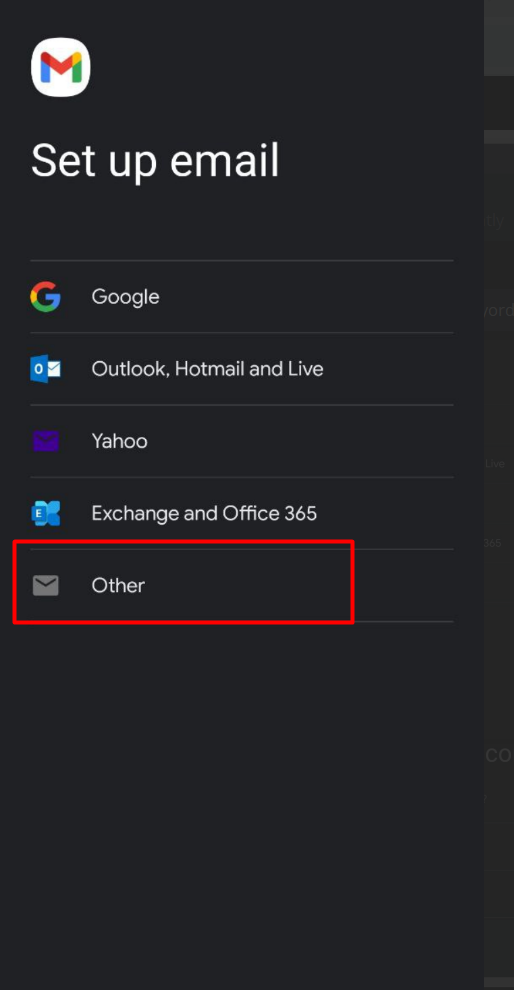
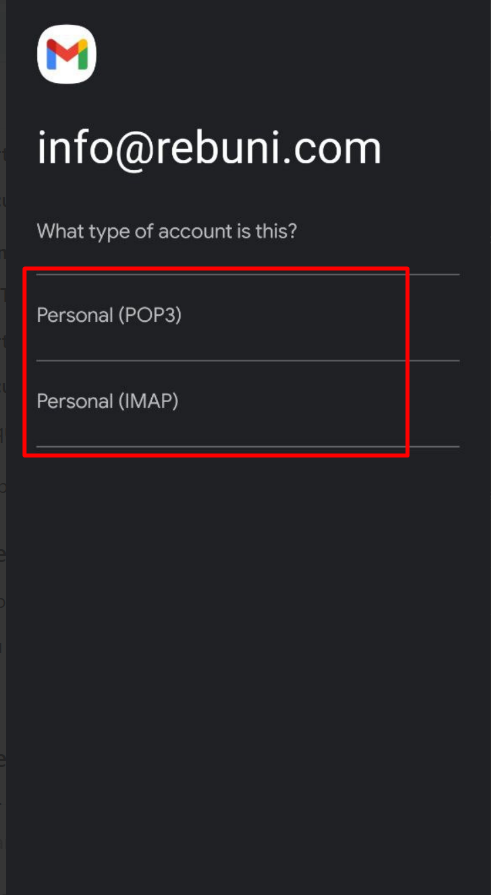
Select the type of email you want to add:
Google – if it’s a company email hosted by Google Workspace.
Outlook, Hotmail, Live – for Microsoft accounts.
Other (IMAP/POP) – for custom email domains (e.g., [email protected]).
This allows email syncing across devices and keeps a copy on the server.
IMAP is preferred over POP3 for most users because:
Your emails stay synced on all devices. You won’t lose messages if you switch phones.
Image 05. Choose Account Type
Step 6: Enter Incoming Mail Server Settings
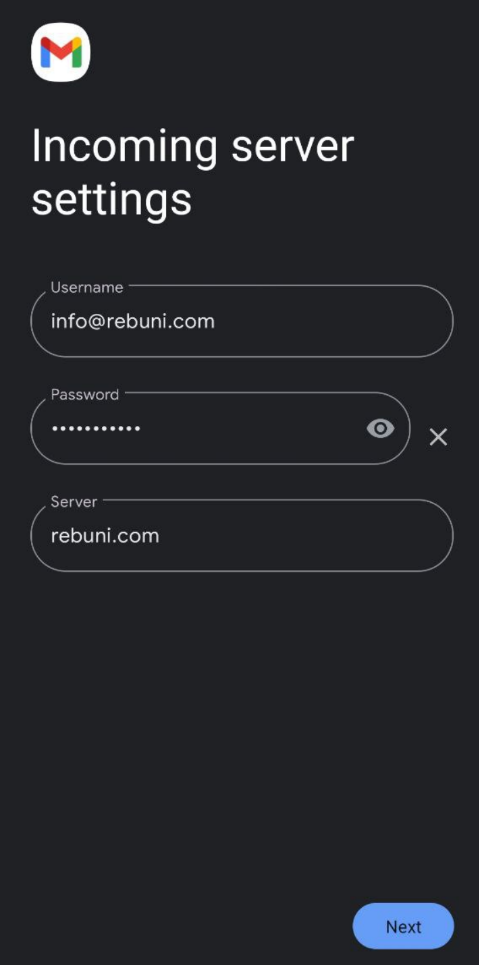
You'll now be prompted to enter Incoming Server settings:
Username: your full email address
Password: Your email password
Server: the mail server provided by your company or cPanel(mail.yourdomain.com)
Image 06. Enter Incoming Mail Server Settings
Step 7: Sync Options
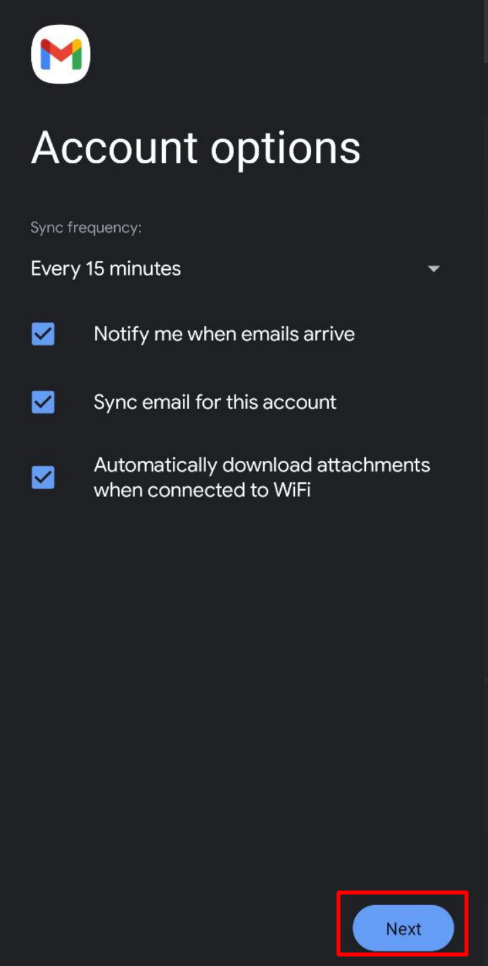
Choose sync frequency (e.g., every 15 minutes).
You can then click "Next" and you will be redirected to the gmail app home page.
Image 07. Sync Options
Step 8: Confirm Your Account is Added
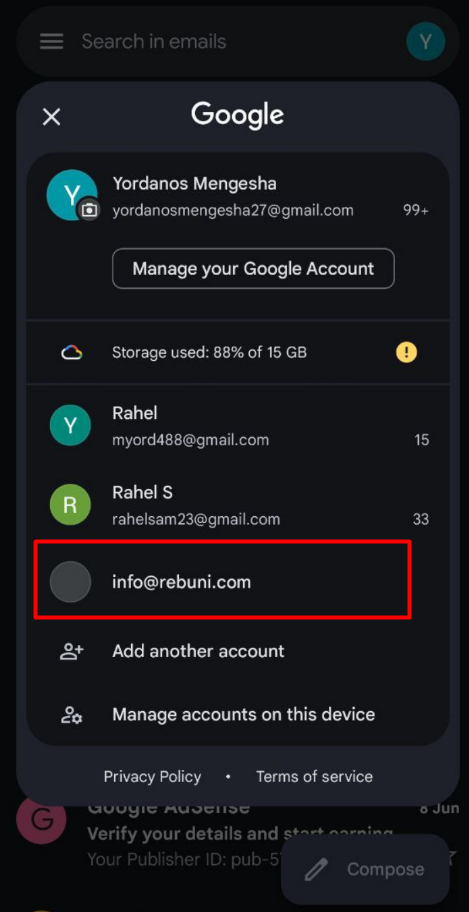
Once you finish the setup, you can access your added company email like this:
Open the Gmail app.
Tap your profile icon at the top-right corner.
You’ll see your added email account (e.g., [email protected]) listed there.
This confirms that your company email has been successfully added to the Gmail app. You can now switch between accounts by tapping on the one you want to use.